
Assistant
The assistant answers questions about your project in the UI. It reads your traces, spans, sessions, users and settings with the organization’s LLM connection, and it drafts filters, SQL, dashboards, evaluators and online rules that you can apply. It never saves anything for you.
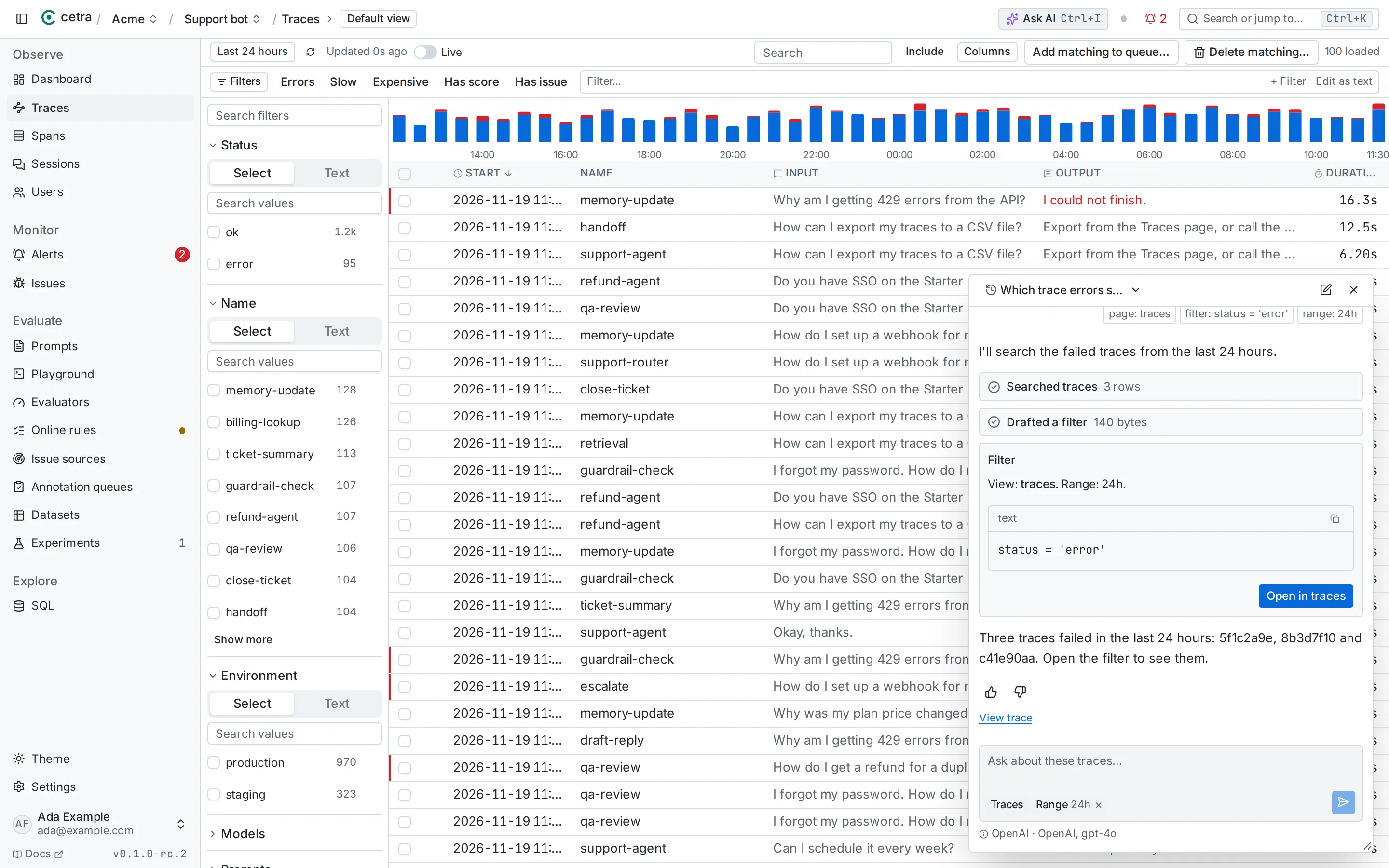
Turn on the assistant
Section titled “Turn on the assistant”The assistant is off until an organization admin turns it on. Only admins and owners can change the setting.
- Open the organization’s settings and select Assistant.
- Turn on Turn on the assistant.
- Choose a Connection. It is one of the organization’s LLM connections.
- Enter the Model. It must support tool calling on that connection.
- Select Test to run the check without saving.
- Select Save. Saving runs the same check first. If the model does not make the tool call, Save fails, and nothing is saved.
When the assistant cannot answer, the panel’s body shows only why, and nothing else:
- off in the organization: “The assistant is off in this organization.” Org admins and owners also get a Turn it on link to the setting;
- no connection: “The assistant’s LLM connection was deleted.”;
- restore mode: “The assistant is paused while this server is in restore mode.”;
- not a member of the project: “The assistant is for members, admins and owners of this project.”
The panel header still works in these states. The chat menu still offers Rename and Delete for the selected chat, and the transcript of a chat is not shown. The composer is not shown either, so you cannot send a question.
Deleting the connection the assistant uses turns the assistant off. A connection marked failing still serves the assistant.
Who can use it
Section titled “Who can use it”Members and above can open the panel in a project. Viewers do not see it. The assistant works only in a browser session. An API key or a personal access token cannot reach it.
Ask a question
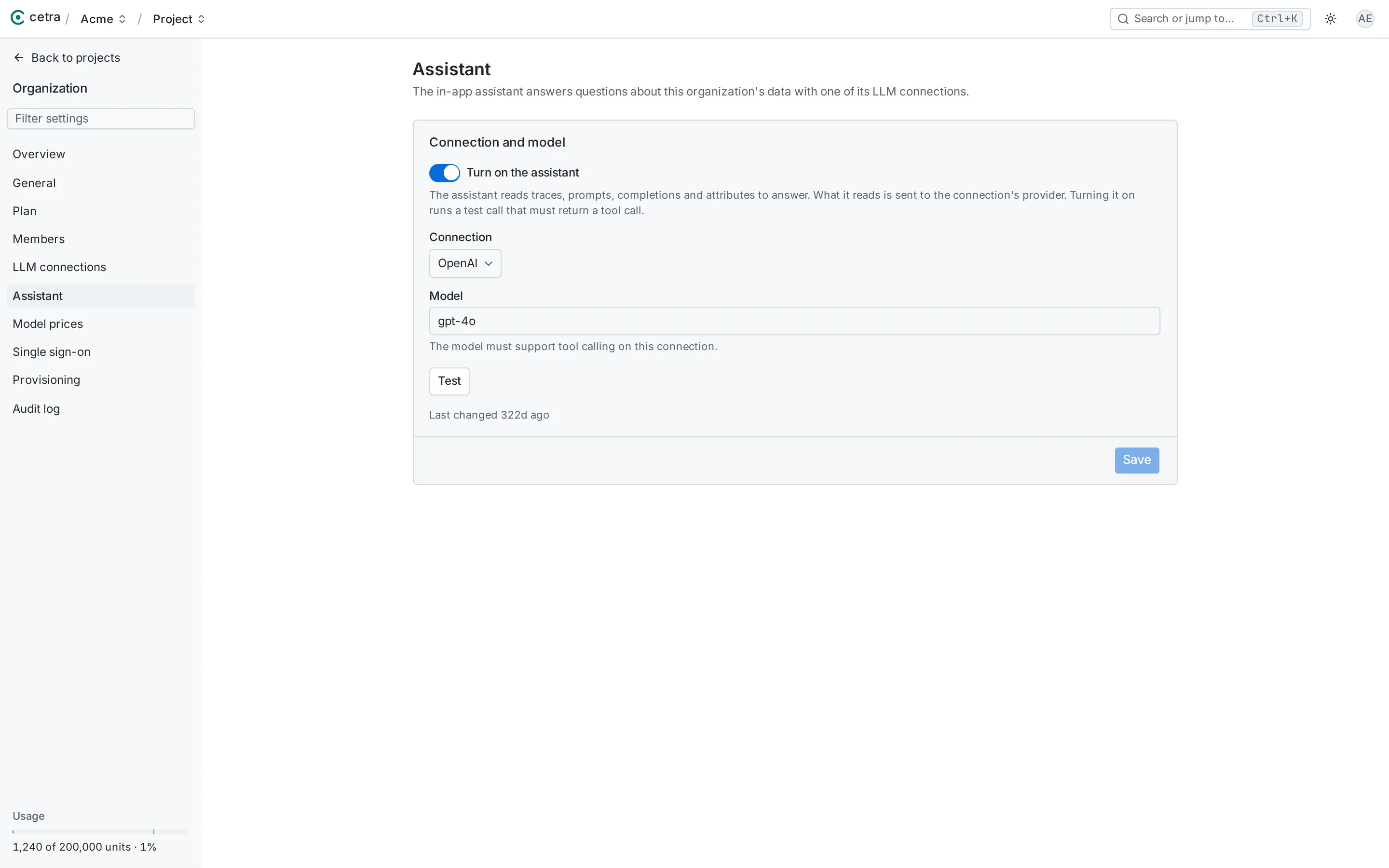
Section titled “Ask a question”- Select Ask AI in the top bar, or press
Ctrl/Cmd+I. The assistant opens in a window over the page and stays open while you move between pages. Drag its header to move it, and its bottom right corner to resize it. On a narrow screen it opens as a full-width panel instead. - Type your question in Message the assistant and send it with Send. Press Stop to end an answer early. The part already written is kept and marked as cancelled.
- Read the answer. Each tool call is a step you can expand. It shows the tool’s name, the arguments of the call and a summary of its result. A step that ran SQL has an Open in SQL console button, which opens the query in a new tab. Each answer has a View trace link to the trace of its turn.
- Give feedback with Thumbs up or Thumbs down under an answer. Feedback is recorded on that answer. It is not a score.
The panel sends the page you are on as context. The context shows as chips above the composer, for example the trace you have open or the filter on a list. Remove a chip with its remove button before you send. The context is limited to 8 KiB.
The panel names the connection and its provider under the composer. The answers come from that provider.
Each chat is listed in the panel. Select New chat to start one. To rename or delete a chat, open its menu. The panel opens your last chat in the project. A chat belongs to you. No one else in the organization can see it, admins included.
Drafts and Apply
Section titled “Drafts and Apply”When the assistant writes a filter, SQL, a dashboard, an evaluator or an online rule, it shows a draft card. The card shows what the draft holds. An evaluator or a rule card shows the full judge template, mapping and filter.
Select the card’s button to apply the draft. Nothing is saved until you save on the page that opens:
- a filter opens its list page, with the filter in the URL;
- SQL opens a new tab in the SQL console;
- a new dashboard opens the new-dashboard dialog, prefilled. An existing dashboard opens its editor with the draft. If the dashboard changed since the draft was made, you see the “changed” message;
- an evaluator or an online rule opens its new form, prefilled.
Saving on that page needs the same permissions as on any other save. A draft is kept in the browser for 60 seconds, for the page it opens. After that it is dropped, and a reload drops it at once. On a narrow window the panel closes when you apply a draft, so the page you opened is visible.
Answers are plain Markdown. The panel does not show HTML or images from an answer. Links to pages in cetra open in the app. Other links show their full address and open in a new tab only when you select them.
What is sent and stored
Section titled “What is sent and stored”Your questions, the page context, the chat history and the results of the tools the assistant calls are sent to the provider of the organization’s LLM connection. Turn the assistant on only if your organization accepts that the provider receives this content.
The table shows what cetra keeps and for how long.
| What | Kept |
|---|---|
| Your questions, the answers and the page context | Until you delete the chat, or 30 days after its last activity. The page context includes any filter or SQL text you typed. |
| Full tool results | 24 hours after the turn. An hourly sweep then replaces each result with a note that holds the tool name, the size and the row count. A result can stay whole for up to about 25 hours. The assistant runs the tool again if it needs the data. |
| Feedback on an answer | With the answer. |
| Turn traces | In the cetra-assistant environment, under the project’s retention. They hold timing, model and tool names, token counts, cost and result sizes. They hold no message text, arguments or results. |
A chat is deleted when you delete it, 30 days after its last activity, and with its project, its organization or your account.
The turn traces are not counted as units. The Traces list, the dashboard and alerts leave them out by default. A filter on the environment field shows them. See Deletion and retention for how to delete data.
Limits
Section titled “Limits”| Limit | Value |
|---|---|
| Turns per user | 20 a minute, and 2 at a time |
| Turns per organization | 8 at a time |
| Turns per chat | 1 at a time |
| Model calls per turn | 16 |
| Tool calls per turn | 32 |
| Length of a turn | 10 minutes |
| Your message | 16 KiB |
| History sent to the model | 100,000 estimated tokens. The oldest tool results and turns go first. |
| Messages per chat | 200 |
| Chats per project, per user | 100. The oldest chat is deleted to make room. |
| Rows from a SQL tool call | 1,000, and 30 seconds |
| Size of a tool result | 20,000 characters |
When a turn reaches a limit, the assistant ends with a short answer that names the limit.
How the assistant differs from the MCP server
Section titled “How the assistant differs from the MCP server”Use the MCP server when a coding agent reads your data. Use the assistant when you want an answer in the UI.
| Assistant | MCP server | |
|---|---|---|
| Who uses it | Members, in the UI | Coding agents, with a personal access token |
| Model | The organization’s LLM connection | The model of your coding agent |
| Writes | None. It drafts, and you save. | None |
| Access | Your permissions in the project | Your permissions in the project |