Playground
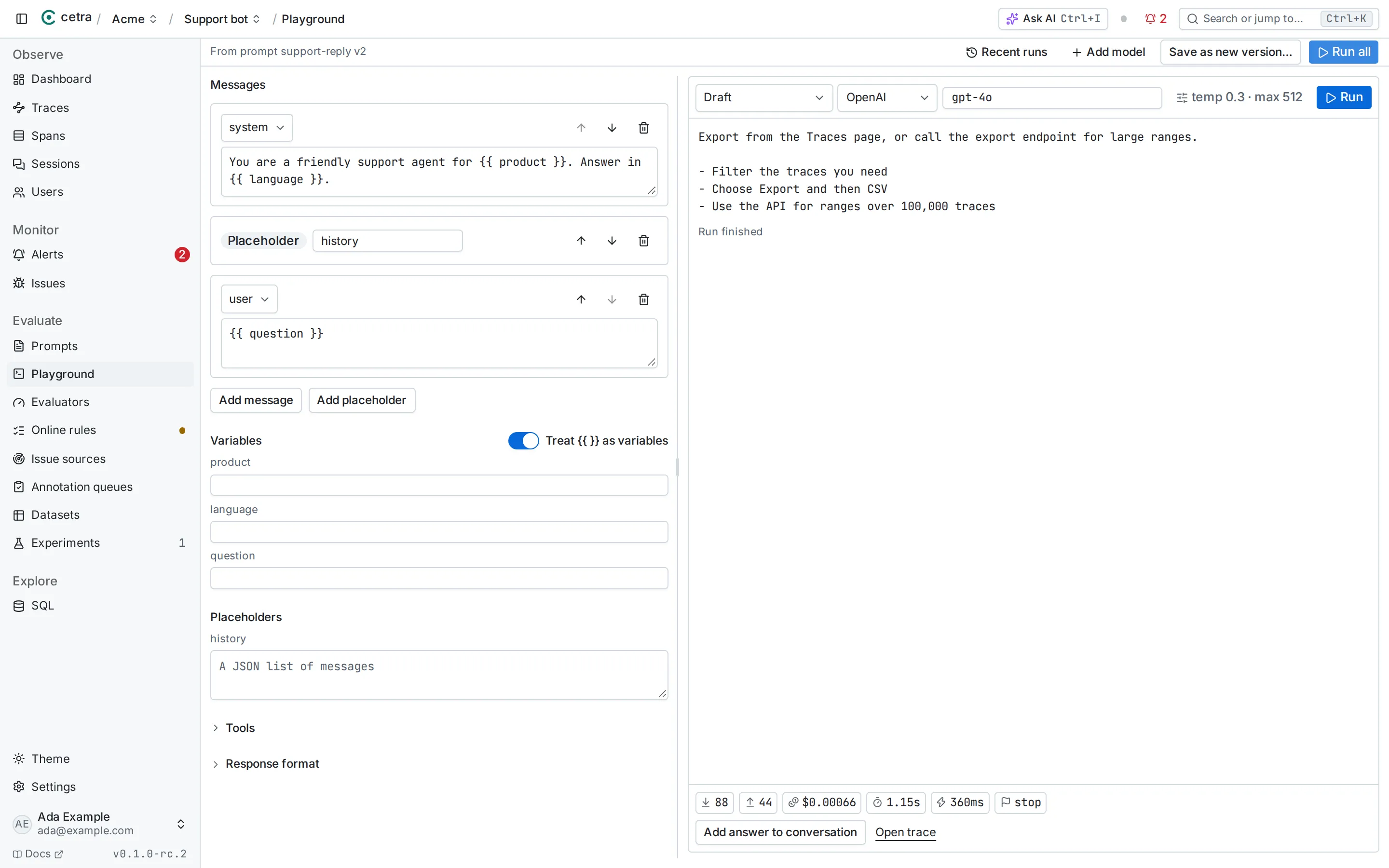
The playground runs a message list against one to four models through your organization’s LLM connections. Each model gets its own column, and each answer streams in as the model writes it.
Open the playground
Section titled “Open the playground”Select Playground in the Evaluate group, or press g then l. You can also open the playground from three other places:
- A prompt version. The prompt page has Open in playground. The playground loads that version’s messages and config, and lists its variables.
- An LLM span. The span header has Open in playground. The playground loads the span’s input messages, its model and its parameters.
- A recent run. The Recent runs panel lists your past playground runs. Select one to load it again.
A draft is kept in your browser for each project, so it is still there when you come back. Opening a prompt version, a span or a run loads it into the draft.
Messages, variables and placeholders
Section titled “Messages, variables and placeholders”Each message has a role (system, user, assistant or tool) and text. Edit the text in place. A message that holds tool calls or tool results, such as one from a span or a past run, is edited as its parts in JSON instead.
A variable is {{ name }}, with the same syntax as the SDKs. The playground lists the variables of your messages under Variables, and you set a value for each one. A variable with no value is sent as an empty string. The server checks the variables when you run, and a message with a problem shows the problem under it.
A placeholder stands for a list of messages that you give under its name, as a JSON list of messages. The placeholder is replaced in place when the run starts.
Turn on Treat [object Object] as variables in the settings panel to render variables. It is on for an empty draft and for a prompt version. It is off for a span and for a past run, so their text is sent as it was recorded. When it is off, the text is sent as written and placeholders are still replaced.
Models side by side
Section titled “Models side by side”Each column has its own connection, model, temperature and maximum tokens. The model is free text. It starts as the connection’s default model, and cetra does not list the models a connection offers. Leave the temperature empty to use the provider’s default. Leave the maximum tokens empty to use 4,096.
Select Run all to start every column, or run one column on its own. Each column shows:
- the answer, as it streams, with Stopped if you stopped it early;
- input and output tokens, cost and latency;
- time to first token and the finish reason;
- Open trace, which opens the run’s trace.
Select Add answer to conversation on a column to append its answer to the messages, so you can continue the conversation from it.
A run is refused before it starts if a message has media or an unknown part, because the playground cannot send those. The message is named, and you remove the part to run.
Compare prompt versions
Section titled “Compare prompt versions”A draft opened from a prompt has a Version select in each column’s header. Draft runs the messages you edit. A version runs that version’s messages, tools, tool choice and response format, with the same variables and placeholders as the draft. Picking a version also sets the column’s connection, model and parameters from the version’s config. You can still change them.
A column with a version shows the version’s template above its answer, in a block you can fold. Each of its runs records the version as its source.
The settings panel’s tools, tool choice and response format apply to Draft columns only, because a version brings its own. Add answer to conversation adds the answer to the messages you edit, as in any column. Changing a column’s version clears its answer.
Save as new version still saves the draft’s messages and settings, with the first column’s config, whether or not that column has a version.
To compare two versions, open the prompt’s playground with Open in playground, select Add model, and pick the other version in the new column. You can also open /<org>/<project>/playground?prompt=<name>&version=<a>&compare=<b>. It opens version a in the first column and version b in the second.
Tools and response formats
Section titled “Tools and response formats”A tool is a JSON list of tool definitions, each with a name, an optional description and its parameters. The playground sends the tools and the tool choice to the model. It does not run the tools: when the model calls one, the call appears in the answer, and you add the result as a tool message yourself.
A response format is a JSON object with a name and a schema. The playground asks the model to answer through a tool named submit_answer, whose input follows your schema. The answer that streams in is that input, as JSON.
Spans do not store the tool choice or the response format. A playground opened from a span leaves them empty.
Limits
Section titled “Limits”- A user can start 60 runs a minute and have 4 runs at once. An organization can have 16 runs at once.
- A run waits up to 10 seconds for a free slot on its connection. If no slot is free, the run stops with a message and does not start.
- A call takes at most 300 seconds. It fails when the provider sends nothing for 60 seconds.
- A connection’s limits are shared with the online evaluation rules and the judges that use it.
- Maximum tokens default to 4,096 and can be at most 65,536.
Runs are traces
Section titled “Runs are traces”Each run is a trace in the environment cetra-playground. Trace lists hide these traces by default. Runs do not count toward your usage units, and the Recent runs panel lists them. A run that fails or that you stop has the status error.
Save as a prompt version
Section titled “Save as a prompt version”Select Save as new version to save a column’s messages and config to a prompt. You can save to an existing prompt, as its next version, or create a new prompt. The saved version holds the messages, the model, the connection, the parameters, the tools, the tool choice and the response format.
A prompt version holds text messages only. A message with tool calls or tool results blocks the save, and the message is named. Remove those messages or save the text yourself.