
Annotation queues
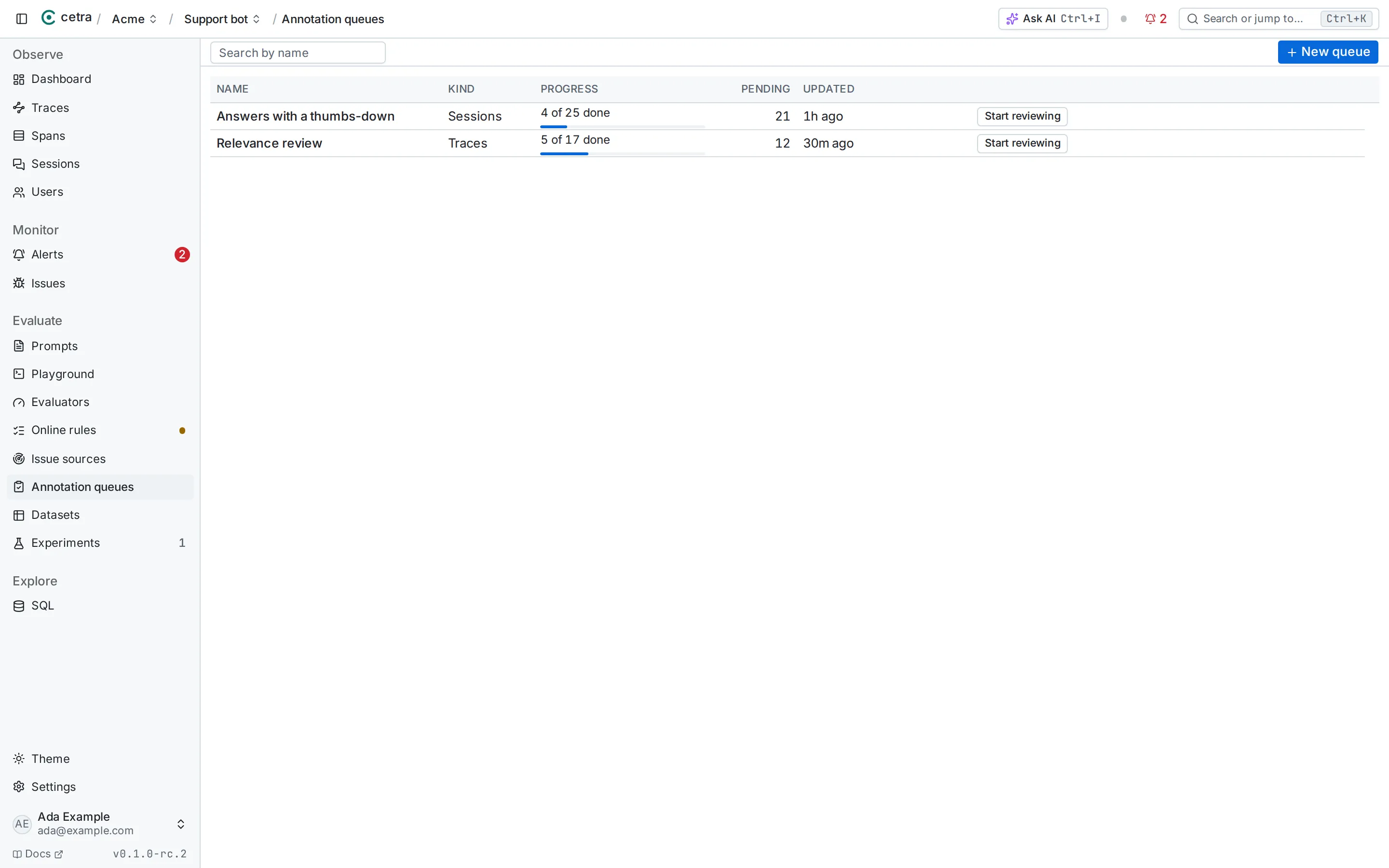
An annotation queue is a list of traces, spans or sessions that members review one at a time. Each review writes scores with the queue’s score definitions.
For one trace at a time, without a queue, see Human annotation.
Create a queue
Section titled “Create a queue”- Open Annotation queues in the sidebar, under Evaluate, and select New queue.
- Enter a name and, optionally, a description.
- Choose what the queue holds: Traces, Spans or Sessions. You cannot change it later.
- Enter the instructions in Markdown. Reviewers see them above the form.
- Choose the score definitions, in the order the form shows them. A queue needs at least one. With no score definitions yet, create them first under Settings, then Score definitions.
- Select Create queue.
On the Free plan, an organization has one annotation queue. When you reach the limit, the dialog shows an upgrade button.
Add items
Section titled “Add items”You can add a trace, a span or a session from its page:
- On a trace page, Add to queue adds the trace. With a span selected, it adds the span.
- On a session page, Add to queue adds the session.
- On an issue page, Send to queue adds the issue’s newest occurrences. See Issues.
The dialog lists only the queues of the matching kind. Choose one, or New queue… to create one, then select Add. An item already in the queue is not added twice, and keeps its status.
You can also add several items from a list:
- Tick rows on the traces, spans or sessions list, then select Add N to queue. You can add up to 1,000 rows at once.
- Select Add matching to queue… to add everything the list’s filter, search and time range match. The dialog counts the matches first. It adds up to 10,000 items per call. If more match, it says so, and you narrow the filter to add the rest. Evaluation traces are never matched.
Review
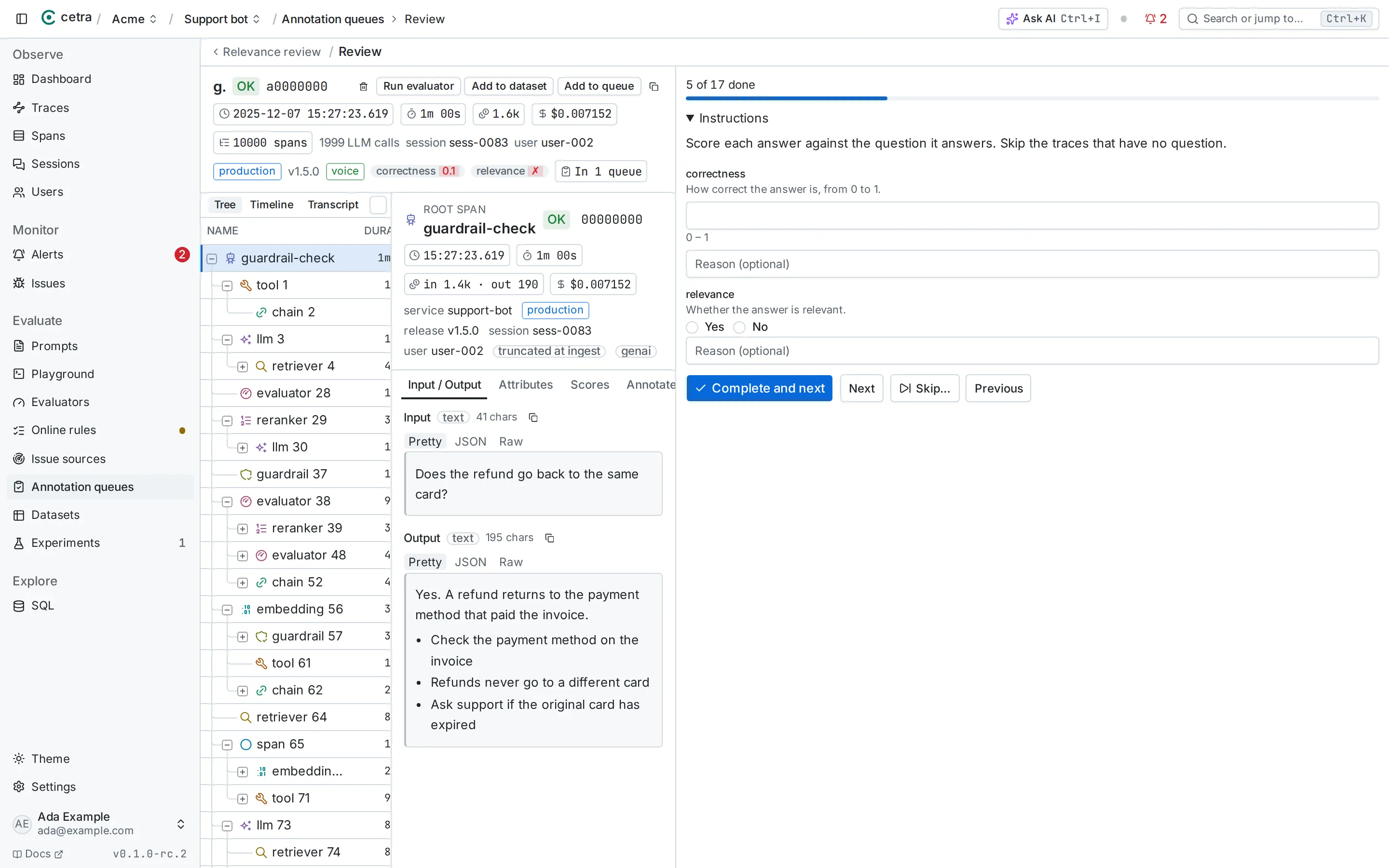
Section titled “Review”- Open the queue from the list and select Start reviewing. cetra opens the next pending item that no other reviewer holds.
- Read the trace, span or session on the left. The instructions are on the right, above the form.
- Fill in the controls you want. A control you leave untouched is not saved.
- Select Complete and next. cetra saves your changes, marks the item completed and opens the next pending item.
When you open an item, cetra holds it for you for five minutes. The page renews the hold every minute while the item is open. When you leave, the hold ends at once, or it ends after five minutes if the page cannot release it. Another reviewer sees Being reviewed by and cannot complete or skip the item until the hold ends.
The buttons under the form:
| Button | What it does |
|---|---|
| Complete and next | Saves your changes, marks the item completed and opens the next pending item. |
| Next | Opens the next pending item and leaves this one as it is. Unsaved changes ask you first. |
| Skip… | Opens a box for an optional reason, marks the item skipped and opens the next one. Unsaved changes are not saved. |
| Previous | Goes back to the page you came from. |
| Reopen | Sends a completed or skipped item back to pending, so a reviewer can review it again. |
A completed or skipped item stays open to you: you can change your scores on it and select Save, or select Reopen to review it again.
When no pending item is free, cetra shows “Nothing left to review.” Select Check again to look once more.
Keyboard shortcuts:
| Action | Windows and Linux | macOS |
|---|---|---|
| Complete and next | Ctrl+Enter |
⌘+Enter |
| Next, without changing the item | Ctrl+Shift+Enter |
⌘+Shift+Enter |
The complete shortcut works only on a pending item once its form has loaded. The shortcuts do not work while a dialog is open or when you can only view the queue.
Scores from a queue
Section titled “Scores from a queue”A score written from a queue carries the queue’s ID. Filter by it in the SQL console, or with the SQL schema:
SELECT name, value_num FROM scores WHERE queue_id = '<QUEUE_ID>'A score is still one score per person, name and target. If you annotate the same trace in two queues with the same definition, the score keeps the ID of the queue you wrote it from last.
What happens on deletion and retention
Section titled “What happens on deletion and retention”- Deleting a trace removes the queue items of its spans and its sessions. Deleting a user’s data or a set of traces by filter does the same for the traces they cover.
- Retention deletes a queue item with the day of its trace, span or session, including completed items. A queue’s counts drop when that happens. Scores keep their own dates.
- Deleting a queue removes its items, never its scores.
- Deleting a project or an organization removes its queues.
- A queue item whose trace is no longer available shows “This trace is no longer available”, with Remove from queue.